Connecting to Servers
Kuri makes use of the Jenkins Continuous Integration Server for its underlying job management and status monitoring. When you start an Internal Server--via the intro screen button or the "" icon--it is starting up a temporary background instance of Jenkins for Kuri. For longer-term, enterprise-grade deployments, using an external Jenkins server with Kuri is recommended. Details on how to setup an external server are covered in the Advanced Usage section.
The Connect to a remote server ("") action displays the connection dialog, shown below.
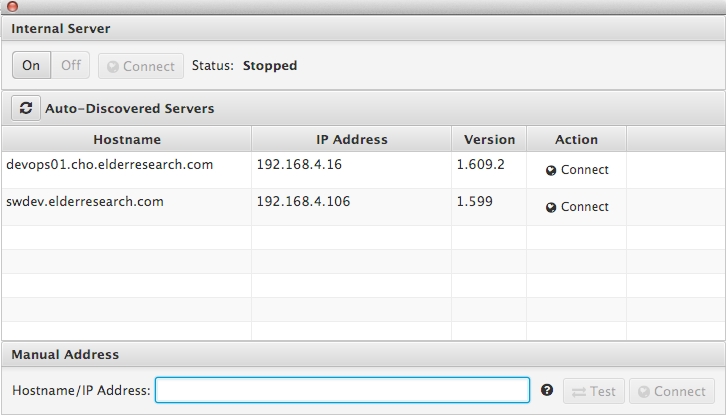
This screen has three areas. At the top are some controls for toggling the running state of the internal server, along with a button to manually connect to it once it is running. The area below that is for querying one's local subnet (using multicast UDP broadcast packets) to discover Jenkins servers running nearby. The last section provides the ability to manually enter a hostname or IP address of a known Jenkins server, along with Test and Connect buttons. With the exception of the first section, it is through this dialog that one would first initiate a connection with an available or newly deployed Jenkins server.